
Appearance
Connect Microsoft 365
Connect a mailbox so its emails are ingested automatically. Connection is done per mailbox from the Email Accounts card in Settings — you can connect several accounts; see Multi-mailbox management for the full picture.
Connecting a mailbox is an administrator task.
Steps
- Open the Settings menu and find the Email Accounts card.
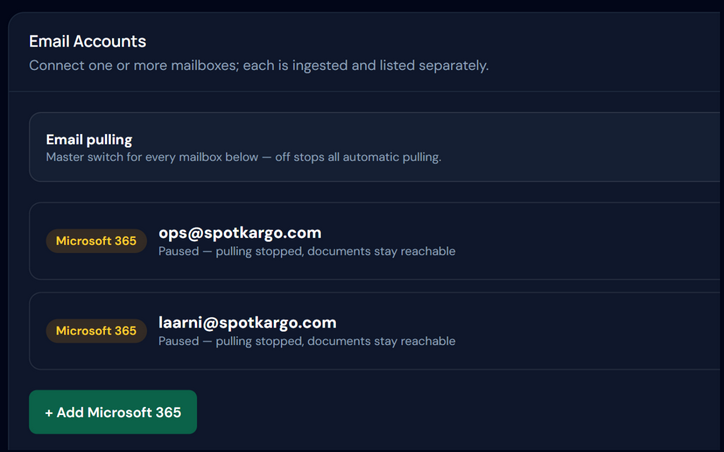 The Email Accounts card — every connected mailbox is listed here with its own pause switch.
- Click + Add Microsoft 365. The Configure Microsoft 365 dialog opens.
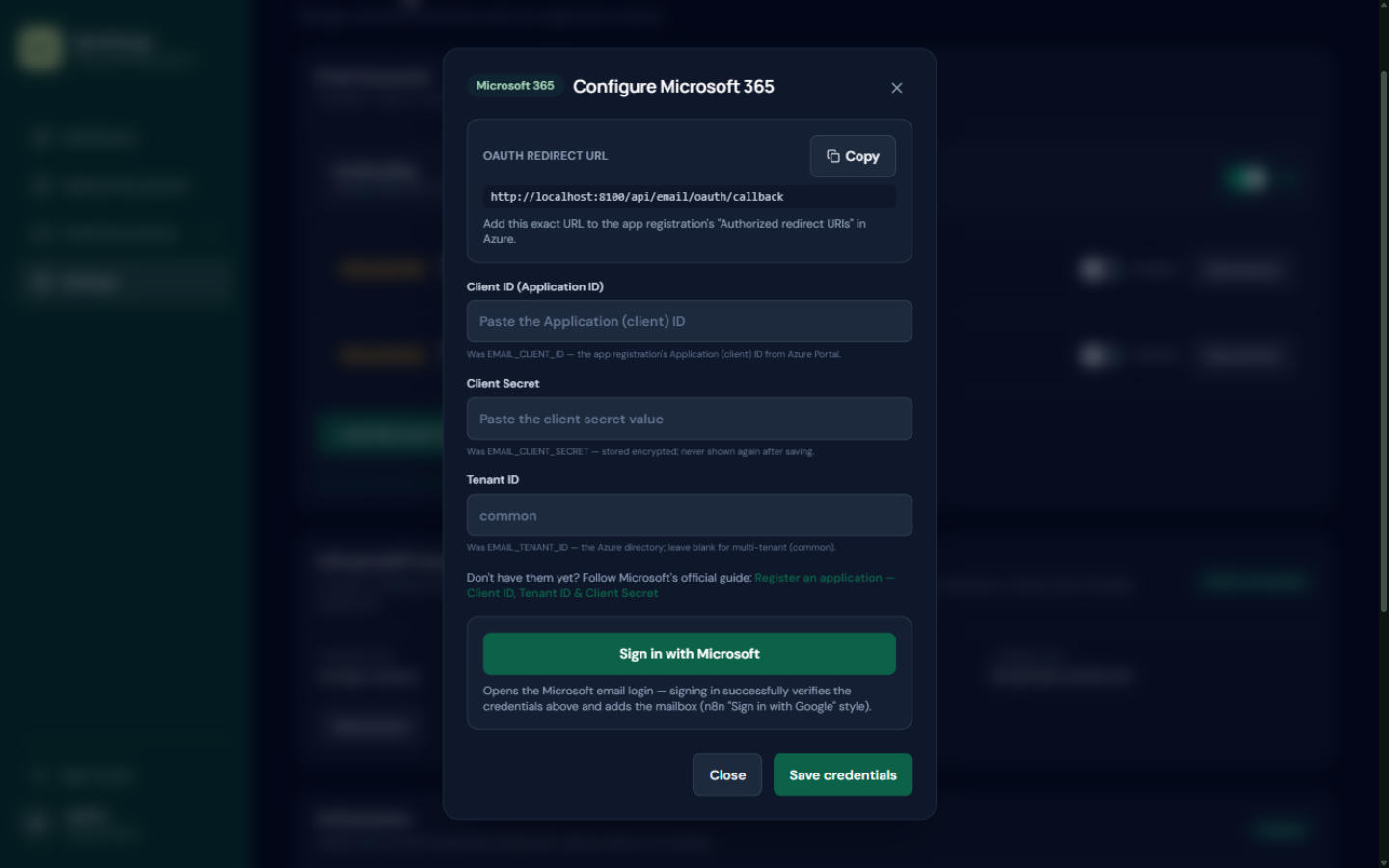 The Configure Microsoft 365 dialog — one-time Azure app registration setup, n8n-style.
Fill in the credentials from your Azure app registration:
- Client ID and Client Secret — stored encrypted; the secret is never shown again after saving.
- Tenant ID — leave blank for multi-tenant (
common). - Copy the OAuth redirect URL shown at the top and add it to the app registration's Authorized redirect URIs in Azure. The URL is specific to your deployment, so always copy the one displayed in your dialog.
- No app registration yet? The dialog links Microsoft's official step-by-step registration guide.
Click Sign in with Microsoft. You will be asked to log in to the mailbox account — signing in verifies the credentials above and adds the mailbox in one go.
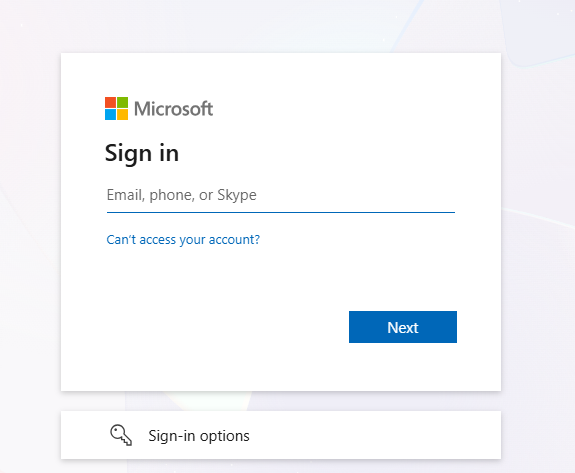 Sign in to the mailbox account.
- Once completed, the card lists the mailbox with status Connected.
To stop ingesting email from an account later, use Disconnect on that account — or pause it if you want to keep the connection but stop the intake temporarily.
After connecting
- The mailbox is polled automatically every 60 seconds over the last 7 days of mail. Select the mailbox under Email Documents in the left menu to see its Mailbox check panel.
- Ingested files appear in Email Documents, one row per email.
- Every document records which mailbox it was pulled from — see Mailbox provenance.
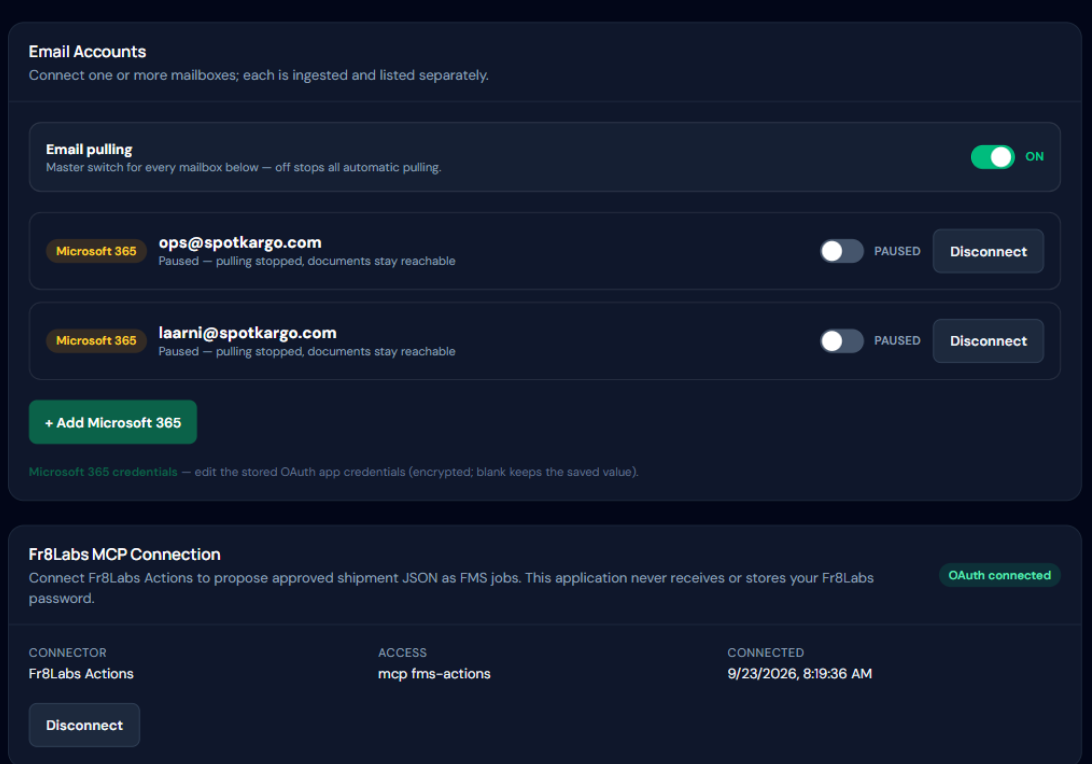 After connecting, the mailbox is listed on the Email Accounts card — pause, resume, or disconnect it any time.
TIP
If emails stop arriving after connecting, select the mailbox under Email Documents and check its Mailbox check panel — the Last check line tells you what the last poll found, and connection errors are shown there too.
Last updated: 31 October 2026