
Appearance
Multi-mailbox management
SpotKargo can pull documents from several mailboxes at the same time — multiple Microsoft 365 accounts, Gmail accounts, or a mix. Each mailbox keeps its own connection, polling state, and pause switch.
Managing mailboxes is an administrator task (see Admin-only areas).
Connecting a mailbox
- Open Settings and find the Email Accounts card.
- Click + Add Microsoft 365 and sign in to the mailbox account.
- Grant consent when asked. The mailbox appears in the list with status Connected.
Repeat for every mailbox you want to ingest from. There is no fixed limit — add one account per sender address you want to monitor.
Pausing and resuming
Each connected mailbox has a pause/resume control:
- Pause — polling skips this mailbox, but the connection and settings are kept. Use it for mailboxes that should stop feeding new documents temporarily.
- Resume — the mailbox is polled again on the next cycle.
A master switch controls polling for all mailboxes at once — handy when you want a complete intake freeze without touching individual accounts.
How polling works
- Every connected, unpaused mailbox is polled automatically every 60 seconds over the last 7 days of mail.
- New messages with supported attachments (
.pdf,.xlsx,.csv) are ingested and shown in Email Documents. - Duplicate messages and files are detected and ignored — the Last check line in the Mailbox check panel shows how many were new, duplicate, or ignored.
Security of stored credentials
Mailbox credentials and tokens are encrypted at rest; they are never shown again in the interface after connecting. Rotated refresh tokens are persisted automatically so long-lived connections keep working.
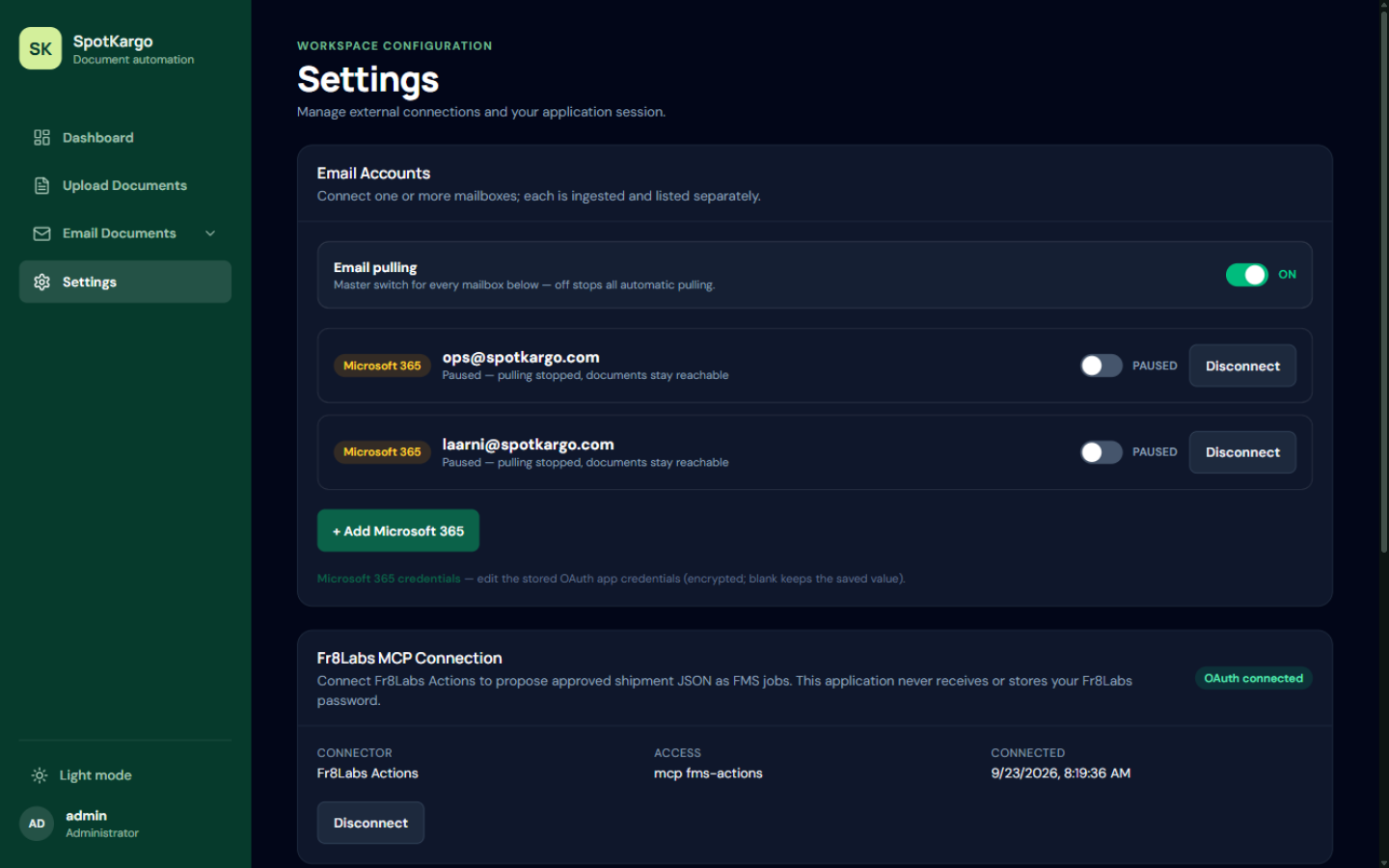 The Email Accounts card with several connected mailboxes and their states.
Last updated: 31 October 2026