
Appearance
AI extraction settings
When AI fallback is enabled, an AI model double-checks the OCR extraction and fills in missing values — a second pair of eyes on every document.
Configuring AI extraction is an administrator task (see Admin-only areas).
The AI Extraction card
Open the Settings menu and find the AI Extraction card. It shows the state at a glance:
- Enabled badge and the AI fallback master switch — off skips the AI pass entirely, without losing the configuration.
- Model, a masked preview of the saved API key, and the Last AI run line (result, time, and duration of the most recent AI pass).
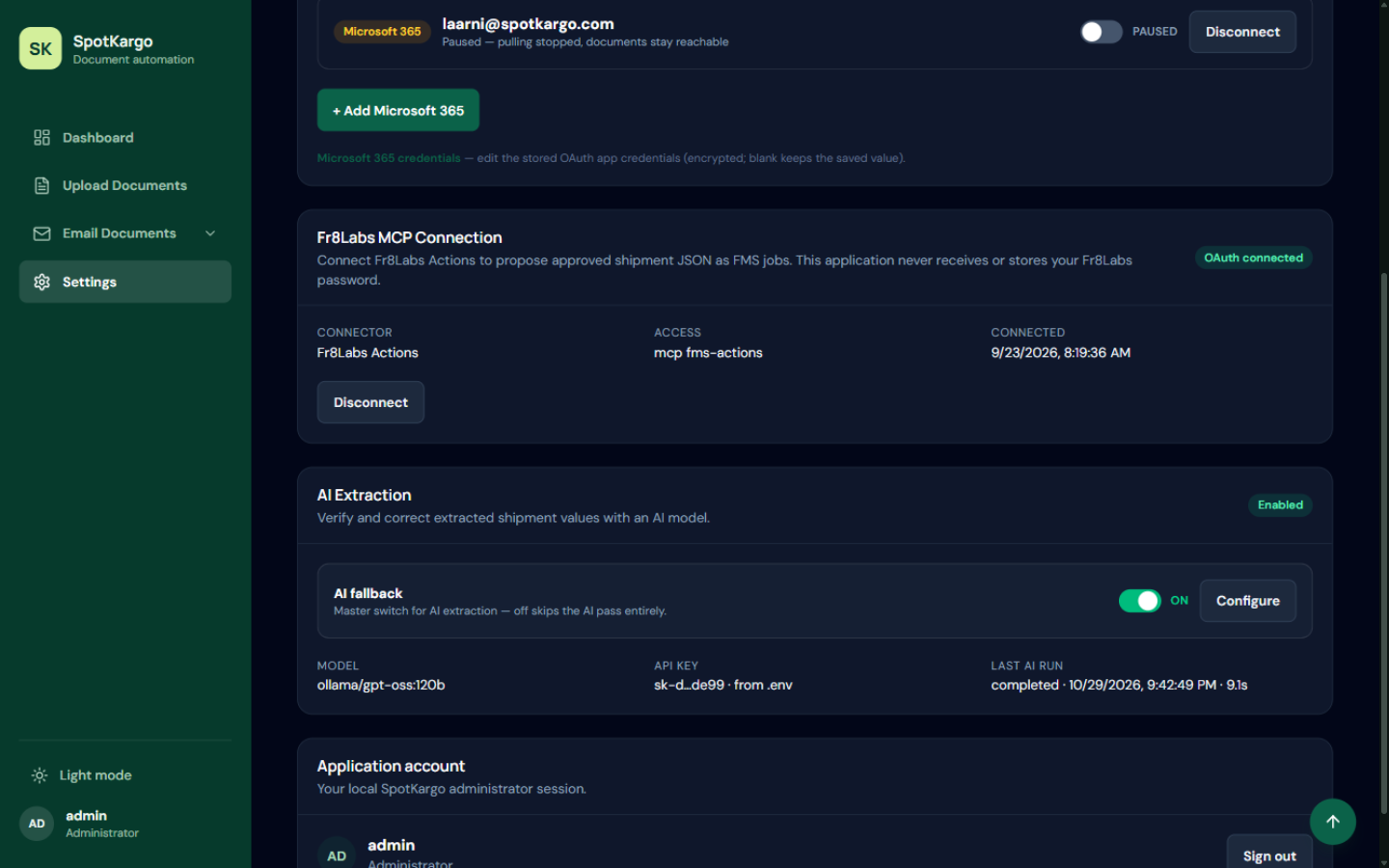 The AI Extraction card on the Settings page.
Configuring
- Click Configure on the AI Extraction card.
- In the dialog, set:
- API URL — an OpenAI-compatible endpoint.
- Model — the model name your endpoint serves.
- API key — the secret for the endpoint. When a key is already saved, leave this field blank to keep it.
- Timeout — seconds to wait before giving up.
- Use Test connection to verify that the endpoint answers.
- Click Save settings.
The same dialog holds a second switch, Learn from operator corrections — it feeds recurring human fixes back into the AI as hints (see AI review and learning).
Changes apply immediately — no restart needed.
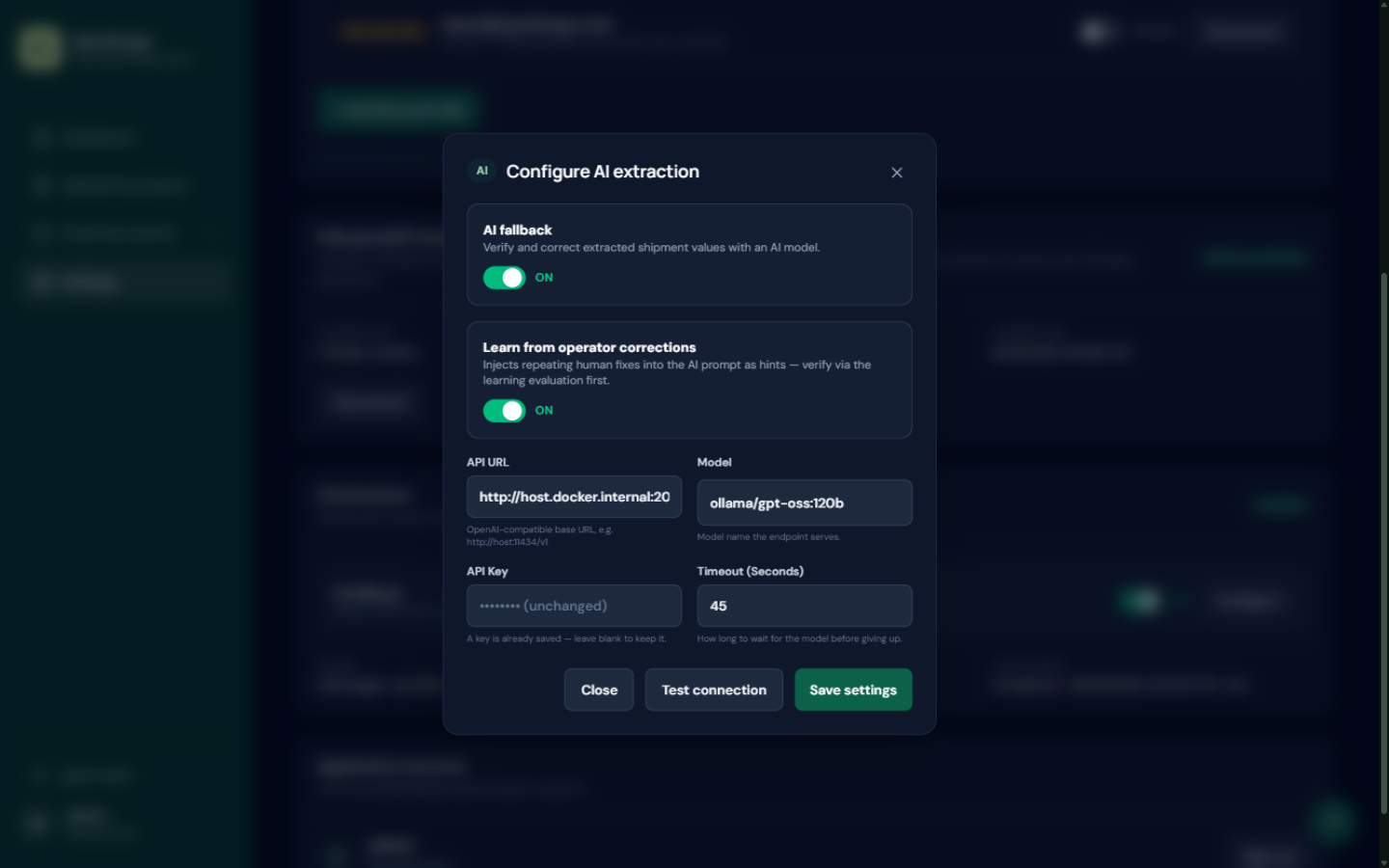 The Configure AI extraction dialog: switches, endpoint, model, key, timeout, and test connection.
TIP
The AI is a fallback layer on top of the OCR, not a replacement: deterministic template extraction runs first, and the AI fills gaps and cross-checks.
Last updated: 31 October 2026